To view the screenshots larger,
please right-click on them and in the menu click on "Open image in new tab"
_______________________________________________________________________________
Create an offer first:
- Menu: Offer
- Add offer
- Indicate the name, which is then also in the code in front like e.g. GS or voucher
With name "GS" the codes are then e.g: GS#123, GS#456, GS#789 etc. - Indicate the discount value
- Scroll down and enter the other details, if the codes should be valid only at certain periods or at certain times not just
- Please do not forget to select the products at the bottom
- Save .
(You are welcome to activate the offer for Spider-Booking 4 in the first step - click on "ACTIVATED" in the upper right corner.)
You can find the detailed instructions here: How do I create an offer?
The codes can only be created once the offer has been saved.
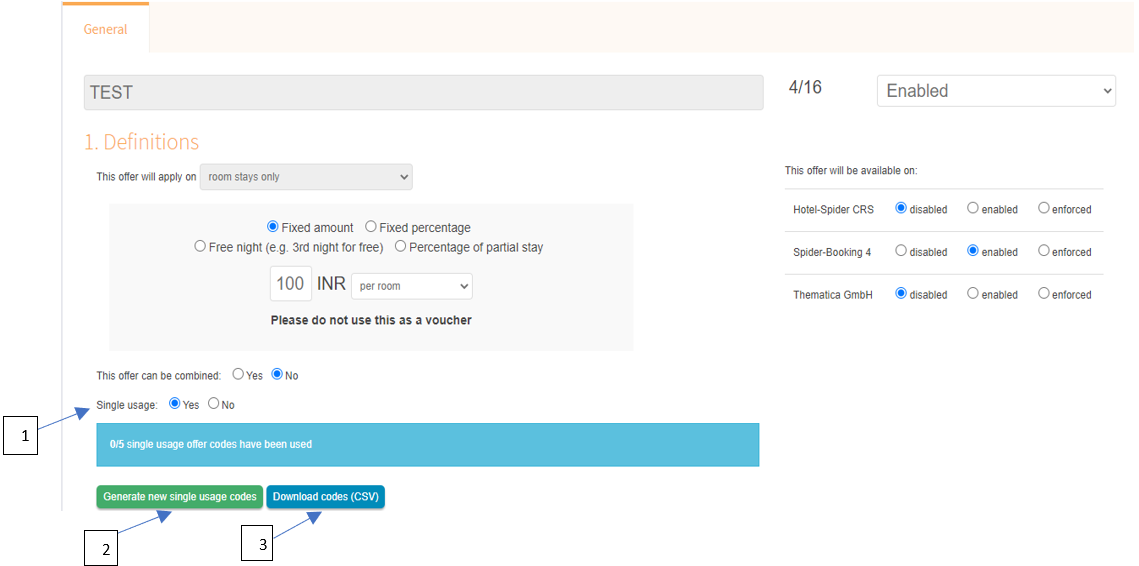
- Click YES on "Single Usage"
- Click the green button "Generate new single usage codes"
- In the new window you will now be asked how many codes should be created, specify how many you need
- Now you can download the codes, click the blue button (3) .
In the list you have the code on the left and a link to your booking engine on the far right, in which the code is already entered, in case you want to link it in an email or similar.
The list can be downloaded again at any time, this also gives you an overview of whether codes have already been redeemed.

Please do not click "Generate codes" (green button) again for existing codes, otherwise the existing codes will expire. If you need more codes, please create a new offer.
Comments
0 comments
Please sign in to leave a comment.