This is a step-by-step description of how to open or close products in Hotel-Spider:
In the Hotel-Spider Extranet under Distribution Booking Rules Products
https://extranet.hotel-spider.ch/hotel/#/bookingrules/sellableproducts
There are two ways to open or block a product:
- Manually in the table
- With the "Change period" window .
To enlarge the images, please right-click on the image and click the "Open image in new tab" item.
Manually in the table
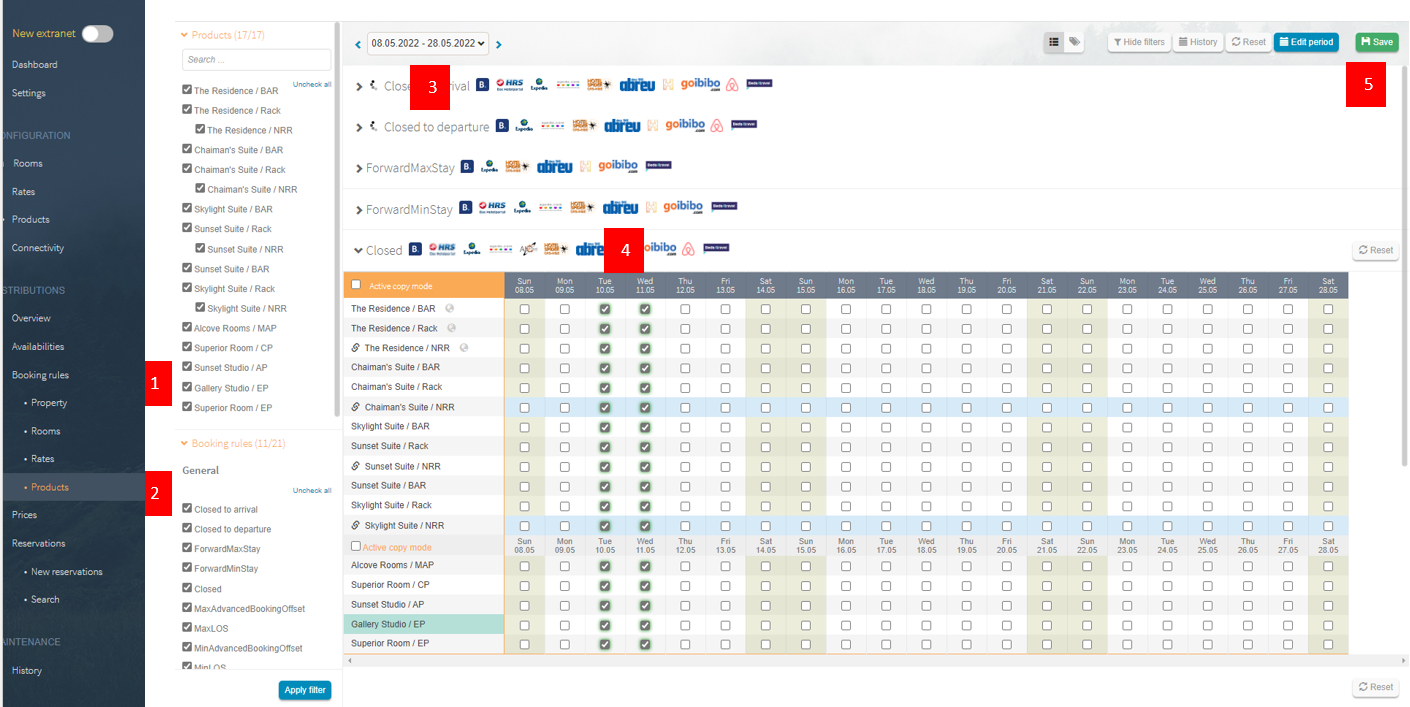
If changes are made only for a few days, you can do it directly in the table.
If a check mark is set, the products are blocked for the specific day. To open a product, remove the checkmark and save the changes.
- Booking rules
- Products
- Set filter on the products to be edited
- Select period
- Set/uncheck
- Save .
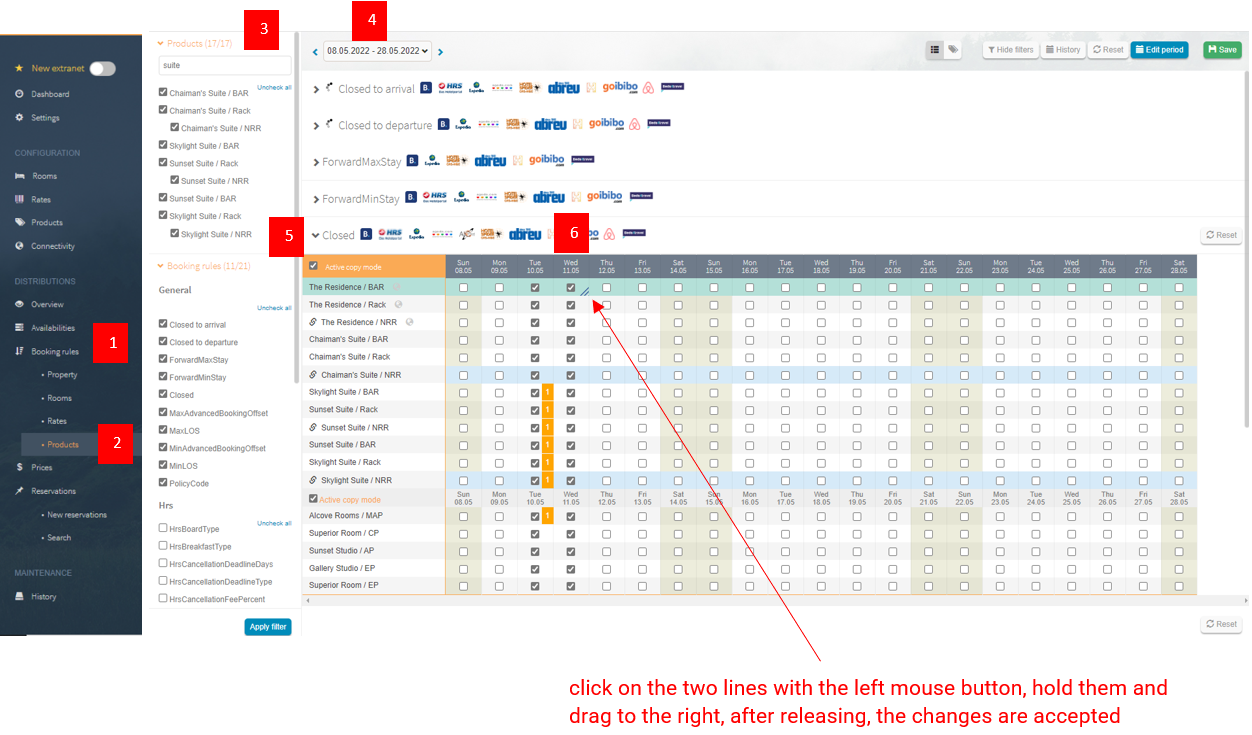
You can also work with the copy mode to open or block the products in the table.
- Enable copy mode
- Select a cell and hold down the left mouse button
- Drag the selection in any direction
- Release the left mouse button. The change will be imported to the fields
- Save .
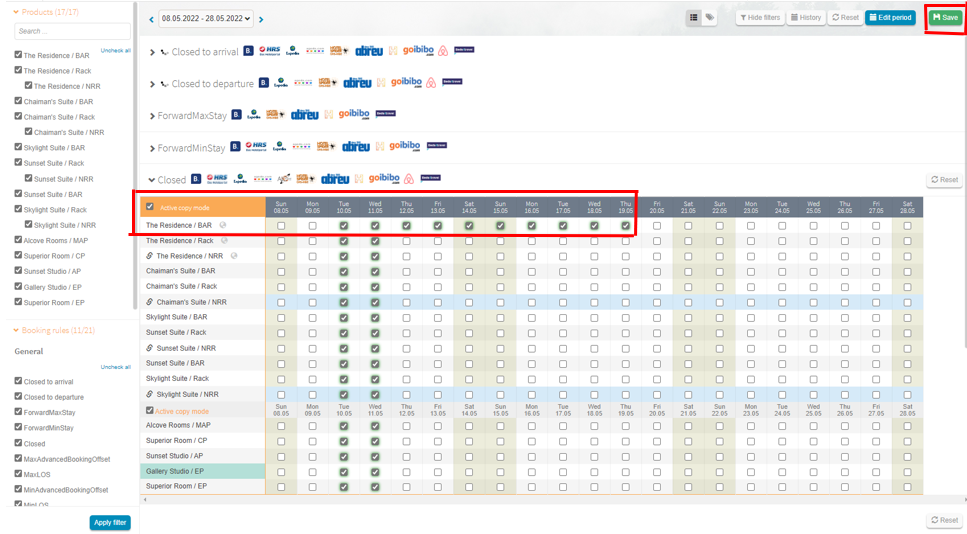
Always save the changes
.
Please note, in the calendar always max. one month is displayed and can also only be edited here. Before you go further in the period, you must save the changes. Use the green button "Save" at the top right.
With the "Change period" window
If changes are made for a longer period or many products, it is worth using the "Change period" window.
Click on "Change period" at the top right of the screen and a new window will open.
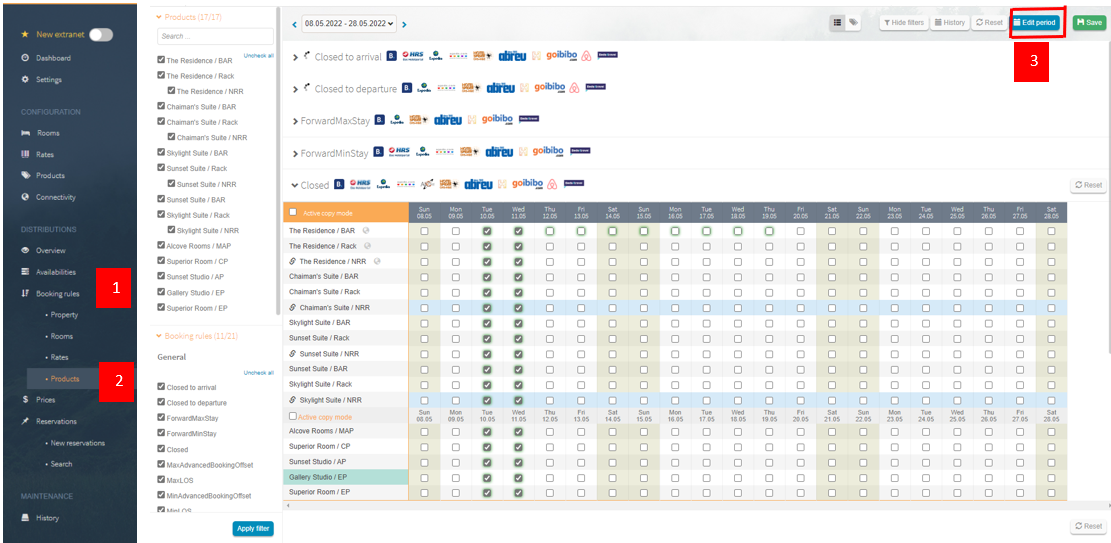
Follow steps 1,2,3 and 4 to make a change.
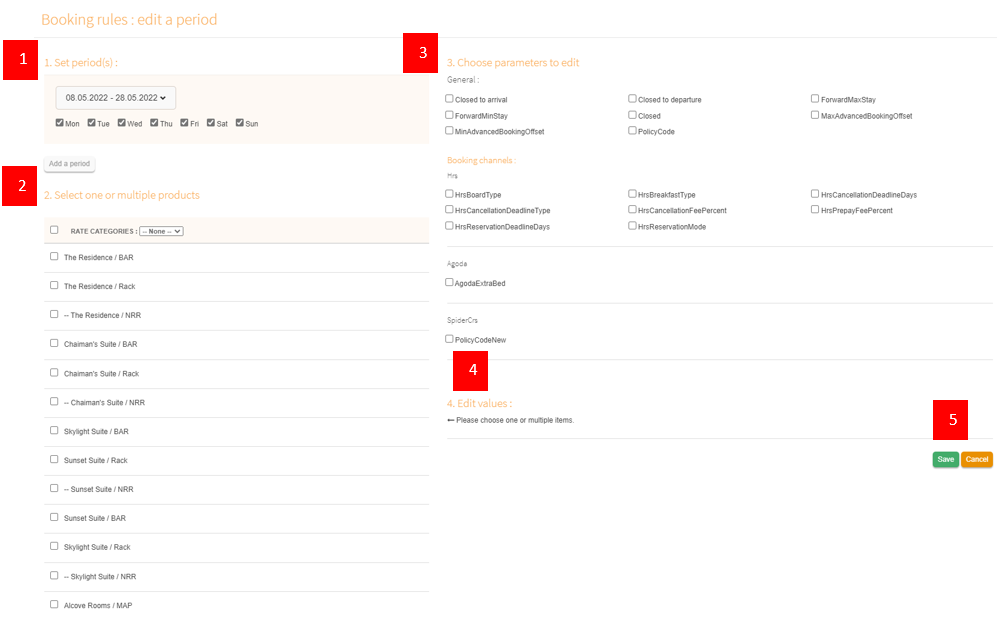
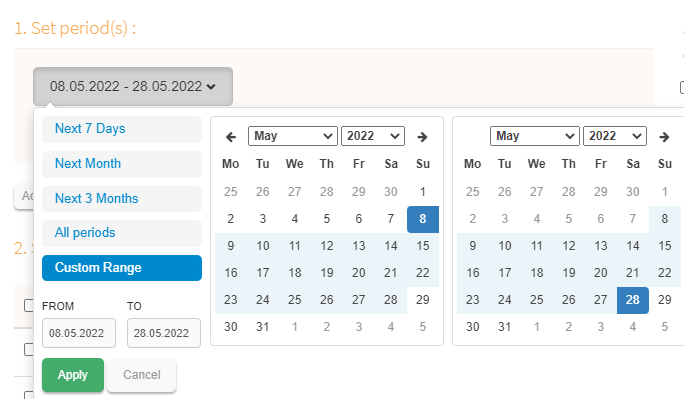
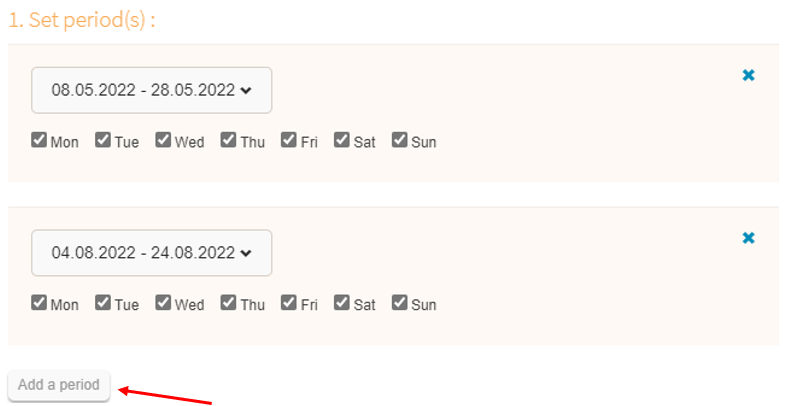
- Define a period and the days to be adjusted during this period. You can also define several independent periods:
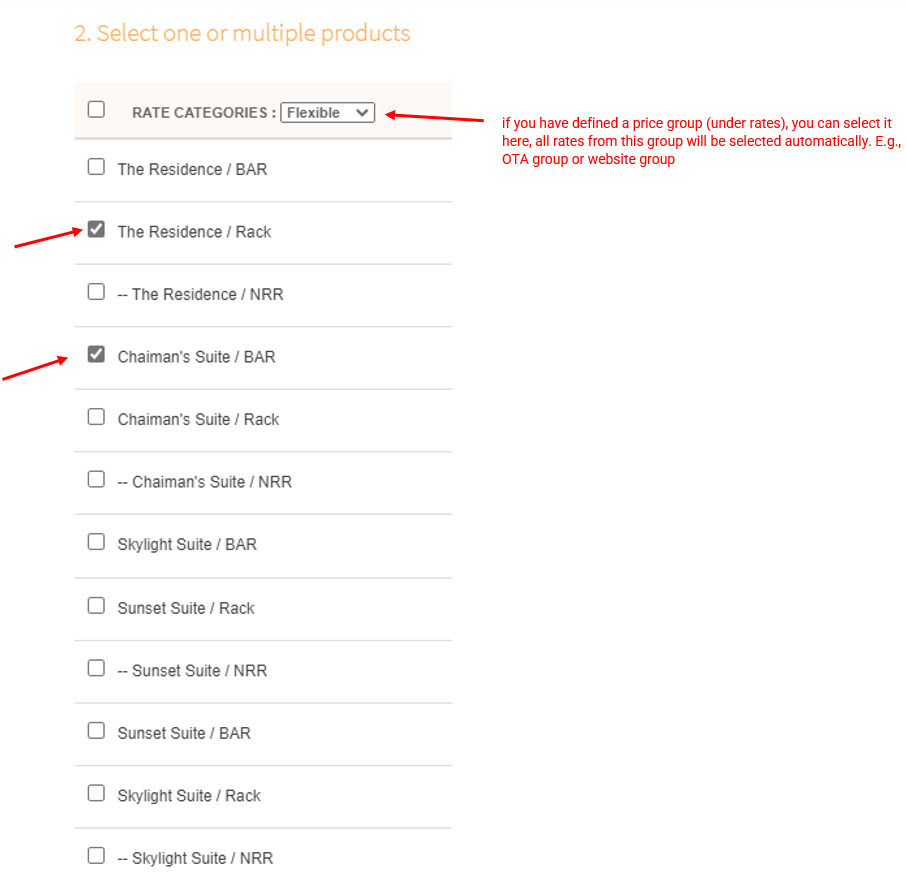
- Check the products in the list that you want to change.
- Select the "Open / Block" parameter.

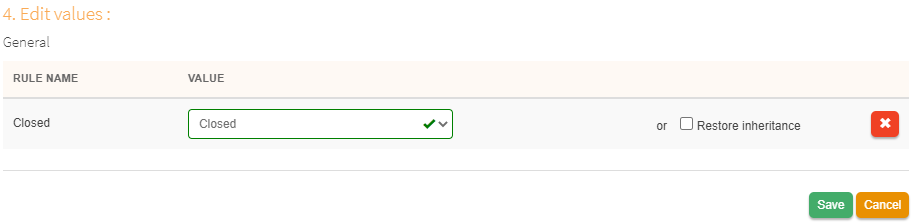
- Change the value to "open" if you want to open the products and to "closed" if you want to block the products. Don't forget to click Save!
Comments
0 comments
Please sign in to leave a comment.